Manage Givers
Manager Givers displays all Church Windows records from Membership and Donations. Common tasks you can complete from this screen include:
-
Linking people who Give with Family
-
Checking for duplicate records
-
Viewing statement settings and contact information
Access Manage Givers
To access from the Button Bar, go to Givers > Manage Givers

To access from the Home Screen, go to the Quick Access Button

Individual Givers
-
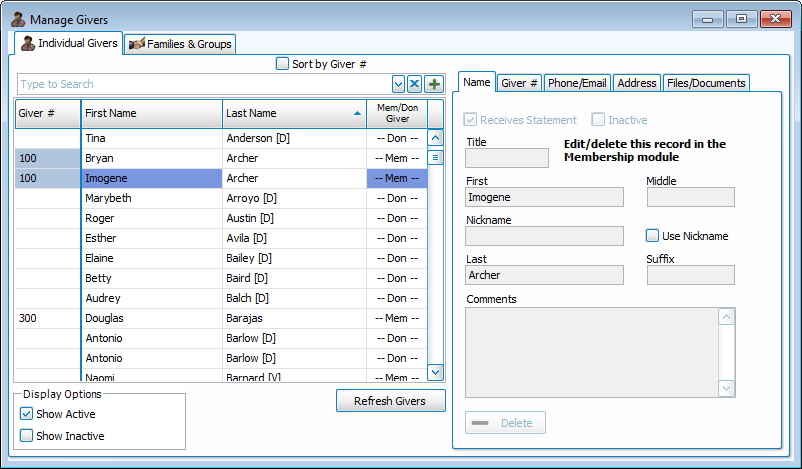
All individual records are available in the grid, listing Giver # (optional), First and Last Name, and whether the record is coming from the Membership or Donations module.
-
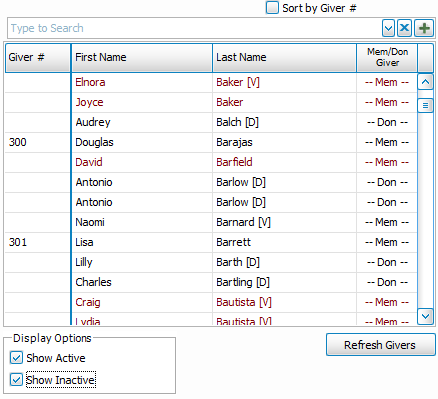
Include Inactive records, shown in red by checking the box in the lower left corner.
-
Search for First, Preferred or Last name in the Giver dropdown above the grid.
-
Donations Records can be edited here. Membership records are view only in Manage Givers. Changes made in their Membership record will be reflected here.
Name Tab
-
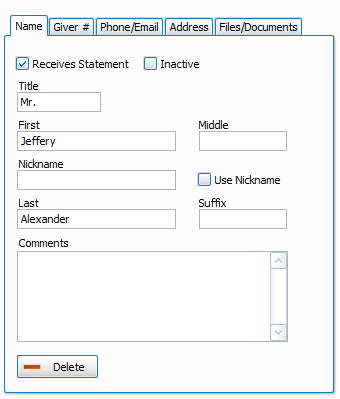
This tab contains names and comments. This is editable for Donations Givers and view only when brought over from Membership.
-
The Receives Statement box is checked by default and allows this individual to receive a statement. If this option is grayed out, then this person is part of a Giving Unit and this setting needs to be edited on their record under the Families & Groups tab. You can get to this record by clicking
 on the Giver # tab.
 -
The
 button allows you to erase a Donations record. This action can only be done if the record has no giving history, including reversals. To maintain their financial history, records that are no longer needed can be archived by checking the Inactive box at the top of the Name tab.
Giver #
-
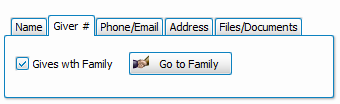
The Giver # tab can assign a new number, defaulting to a start date of the first of the current year.
-
Membership Individuals in the same Family Record in People can be check marked Gives with Family. This combines their donations into one total for reports and Donation Statements. If you assign a giving or envelope number, these giving units will share the same number.
Phone/Email
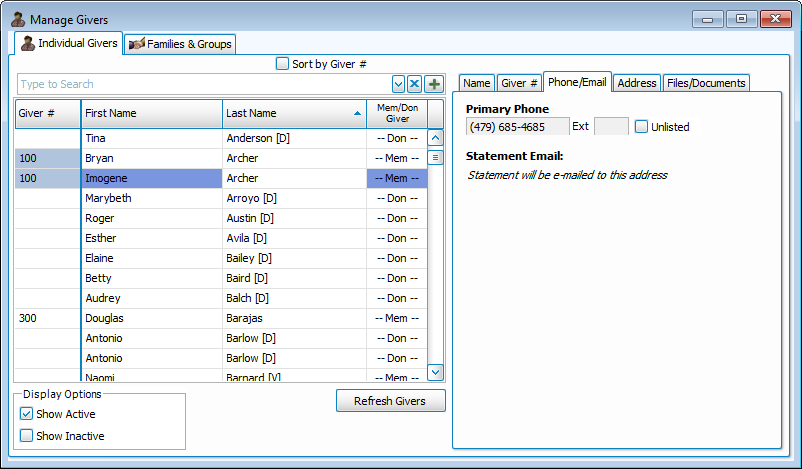
Membership Records pull information over from their record. If they have multiple email accounts, you can designate the account for emailing Donation Statements.
Address
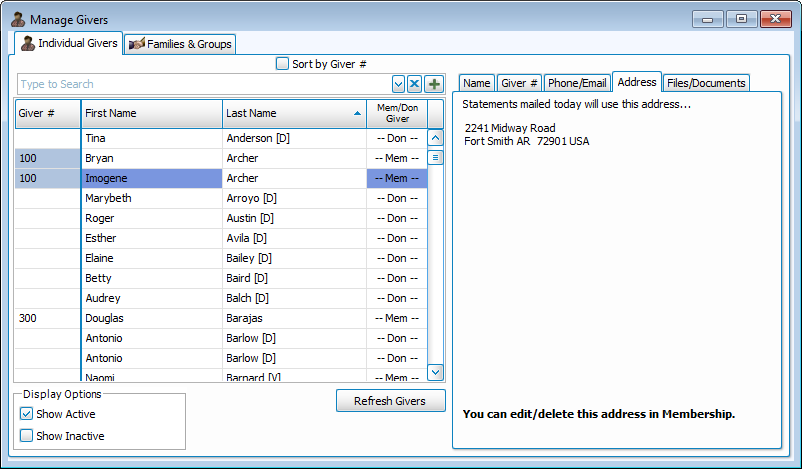
This tab shows the address that will display on Donation Statements.
Files/Documents
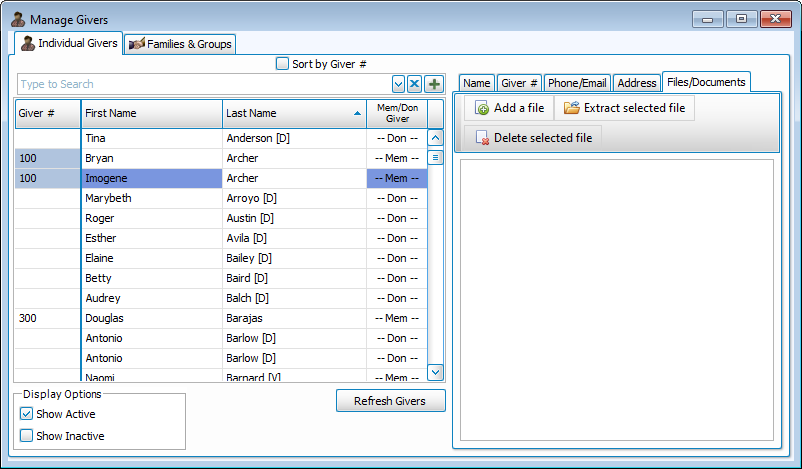
Files and Documents allows you to attach additional images, documents and scans to a family record.
-
Click
 to open a file browse. Navigate to image, file or document and click
  to attach it to the record.
 -
Highlight the file you want to download and click
 to select a location and save the file on your computer.
 -
Click
 to permanently erase the selected attachment.
Families & Groups
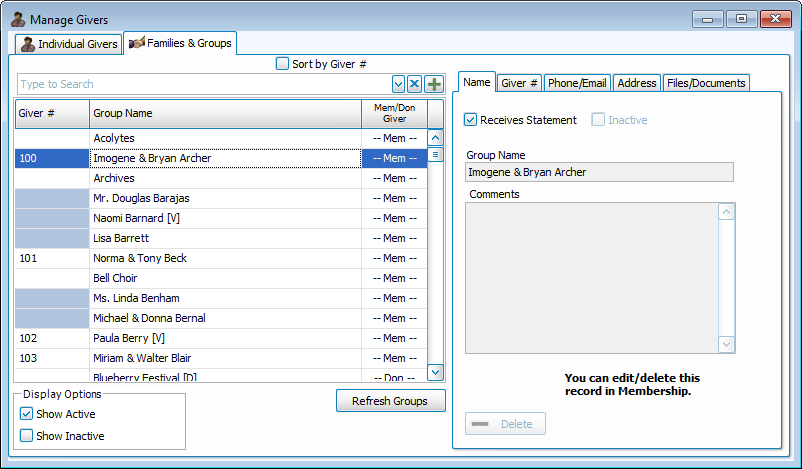
This tab displays Donation Group Givers. People who have been checked as Gives with Family to create a giving unit are listed on this tab under the Mailing Label from their Family Record.